

You don’t need to be a developer to make meaningful improvements to how fast and stable your site feels. In this guide you’ll get clear, actionable steps you can do using CMS settings, plugins, tools, and simple configuration changes that don’t require coding. I’ll show you what to measure, the quick wins that often move the needle, and how to validate results.
Start by getting comfortable with the basics. fixing core web vitals without a developer is about prioritizing a few high-impact items: images, third-party scripts, fonts, and how content loads. Do those well and you’ll see faster pages and happier users.
Why Core Web Vitals matter
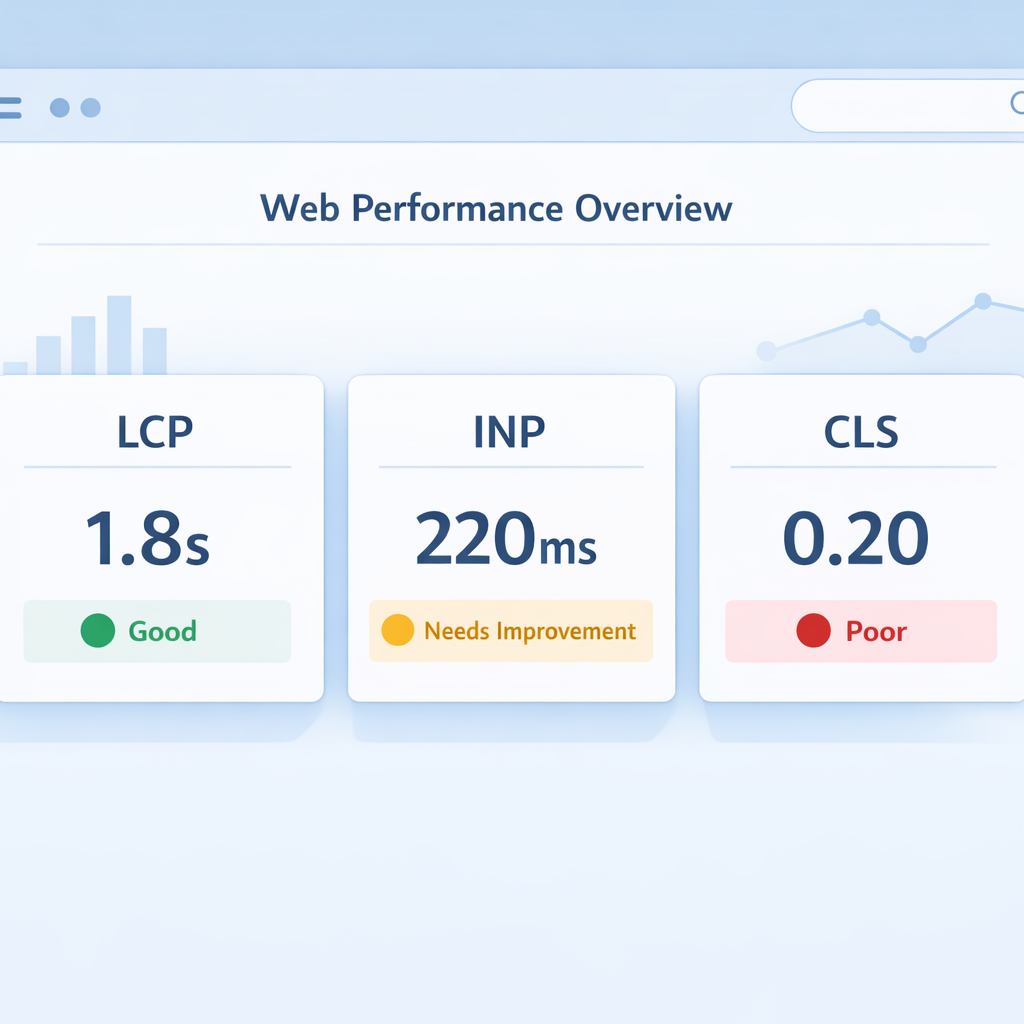
Core Web Vitals are Google’s user-centric metrics for page experience, covering loading, interactivity, and visual stability. Improve them and you improve perceived speed, reduce bounce rates, and protect organic visibility. The three metrics to watch are:
- Largest Contentful Paint (LCP), how fast the main content loads. Aim under 2.5 seconds.
- Interaction to Next Paint (INP), how responsive the page feels. Aim under 200 milliseconds.
- Cumulative Layout Shift (CLS), how stable the page layout is while loading. Aim under 0.1.
You can read the official guidance at Google Developers – Core Web Vitals for full definitions and thresholds.
Quick diagnostics you can run without code
You’ll want to measure before and after. These free tools give reliable, actionable data and do not require dev work to run:
- PageSpeed Insights, enter your URL and get LCP, INP (or TBT lab proxy) and CLS with prioritized suggestions.
- Chrome DevTools Lighthouse, open from your browser and run an audit for lab insights.
- Search Console Core Web Vitals report, if you own the site it shows real-user (field) data across pages.
Each tool will flag high-impact opportunities. Focus on the items that are easy to change in your CMS or hosting settings.
High-impact fixes you can make without a developer
Below are practical steps that commonly improve Core Web Vitals, explained for non-coders and CMS users.
1) Optimize images, first and fast
- Convert large images to modern formats like WebP or AVIF using an image optimization plugin or free online tools.
- Resize hero and banner images so they match display dimensions, don’t upload 4k images if they will show at 1200px.
- Enable lazy-loading for below-the-fold images. Many CMS systems and image plugins include a toggle for this.
- Where your CMS allows, add width and height attributes via the media editor to reserve layout space and reduce CLS.
Why it works: images are often the largest assets on a page and a major cause of slow LCP and layout shifts.
2) Reduce or defer nonessential JavaScript
- Disable or remove plugins and widgets you don’t use. Each plugin often adds scripts that affect INP and LCP.
- Use plugin settings to defer or delay non-critical scripts until after the initial load. Many performance plugins provide one-click options.
- Replace heavy third-party widgets (chat, analytics) with lightweight alternatives or load them after the main content.
Why it works: excessive JS blocks the main thread and makes pages feel sluggish.
3) Tame web fonts
- Use a font-display swap option if your CMS or font plugin supports it. This avoids invisible text blocking.
- Limit the number of font weights and families used on key pages.
- Host critical fonts via your CDN or let your CMS plugin optimize delivery.
Why it works: fonts can delay rendering and trigger layout shifts.
4) Use a caching plugin and CDN
- Activate page and browser caching via a plugin or your hosting dashboard.
- Point your site to a CDN through your host or a plugin to reduce Time to First Byte for global visitors.
Why it works: caching reduces server work, and CDNs deliver assets faster to users.
5) Reserve space to stop layout shifts
- Set image dimensions in your page editor or via image block settings.
- For embedded content and ads, use the CMS embed block options to set fixed aspect ratios.
Why it works: reserving space eliminates unexpected shifts that increase CLS.
6) Audit and remove slow plugins or themes
- Run a plugin performance audit: temporarily disable plugins in a staging copy, or use a site health plugin that reports slow components.
- If your theme is slow, try a lightweight theme available from your CMS marketplace and test performance first.
Why it works: plugins and heavy themes are frequent culprits for poor Core Web Vitals.
CMS-specific quick wins
- WordPress: use a combined performance plugin for caching, image optimization, and asset control. Many plugins offer no-code toggles.
- Shopify: reduce app usage, use optimized theme settings for images, and use Shopify’s CDN options.
- Webflow: export optimized images at correct sizes, and use native lazy-loading and font options.
If you use WordPress, see the feature pages at Auditsky for lead-gen and agency integrations: Auditsky homepage and the SEO lead generation page for ways to convert audit improvements into client wins.
How to prioritize changes, step by step
- Run PageSpeed Insights and record LCP, INP, CLS values.
- Fix the top two easy items the tool recommends that you can change in the CMS.
- Re-test. If progress is small, move to image optimization and caching.
- Track results in the Search Console Core Web Vitals report to see field improvements over weeks.
Quick checklist (doable without dev)
- Convert hero and major images to WebP/AVIF.
- Add width/height or set aspect ratio for images.
- Enable lazy-loading for below-the-fold images.
- Defer non-critical JS using plugin toggles.
- Activate page caching and CDN.
- Limit font families and enable font-display swap.
Answers to common questions
How fast will I see improvements after making changes?
Minor changes like image compression and caching often show improvements immediately in lab tools. Field data in Search Console can take a few days to a few weeks to reflect changes for 75% of users.
Can I fix CLS without CSS changes?
Yes, often by setting image sizes and using CMS embed options to reserve space for embeds and iframes, you fix most CLS without touching CSS.
Which plugin types should I avoid to keep performance high?
Avoid too many analytics trackers, heavy page-builder modules you don’t use, and third-party chat widgets that load large scripts on page load.
Will removing plugins hurt functionality for users?
Test in a staging environment or disable plugins temporarily for a few hours, measure the impact, and re-enable if needed. Often sites keep features while removing only the heaviest plugins.
When should I call a developer?
If you need custom critical CSS, server-level caching rules, advanced script batching, or persistent issues after no-code fixes, a developer is worth hiring for targeted optimizations.
Is a faster site worth the investment?
Yes, faster sites convert better, reduce bounce rates, and help SEO. For agencies, improving Core Web Vitals becomes a tangible service to sell to clients.
Next steps you can take today
Run a PageSpeed Insights check, apply one image optimization and enable caching, then re-test. Repeat each week and document improvements. If you want to turn audit results into leads or impress clients with white-label reports, check out Auditsky’s agency tools and embed options at Auditsky Agencies and Auditsky Web Design lead generation.
Ready to convert improvements into leads and offers
If you want to package your performance wins into a sales tool, add an embedded AI audit widget to your site so visitors can run instant checks and request help. Learn how at https://auditsky.ai and start generating audit-driven leads in minutes.
Conclusion
Fixing Core Web Vitals without a developer is doable and often surprisingly fast. Focus on the biggest wins first, like image delivery, script management, fonts, and caching. Measure before and after, iterate, and use simple CMS tools and plugins to keep changes no-code. Over time, these improvements boost user satisfaction, conversion, and search visibility.